guide
How to make a pendulum text reveal video
Write a sequence of short questions and use a swinging brand badge to reveal the same answer in a seamless ad loop.
7 de nov. de 2026 · 2 min de leitura
Este guia ainda não está disponível no seu idioma, por isso aparece em inglês.
Pendulumwipe
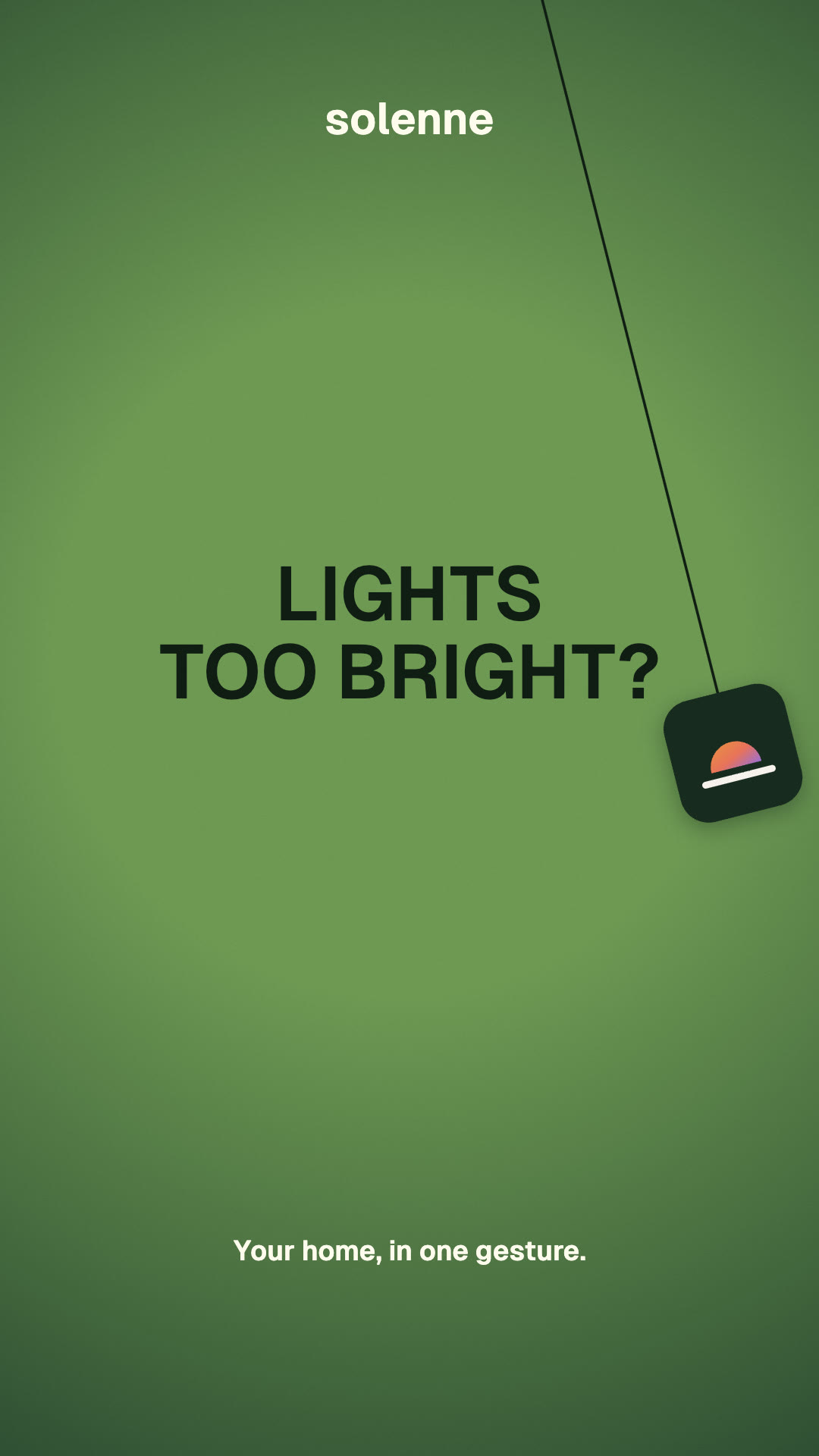
A pendulum text reveal makes the transition part of the message. A hanging brand badge swings across the frame. Its cord divides the old text from the new text, so the answer seems to appear behind the moving line. At either end of the swing the text is fully visible.
Write for the beat
Start with a question people recognize immediately. A smart-home app can open with “Lights too bright?” and follow with “Blinds still open?” or “Heat too high?” A repeated answer like “One gesture.” ties the questions together. Keep each question to one or two short lines so it can be read while the badge slows down at the end of its arc.
Keep the brand in one position and reserve the center for the text. Put the moving badge below the headline, with its cord crossing the letters. The eye can track the transition without losing the copy. Use a visible difference in color between questions and the answer, and inspect the darkest and lightest parts of the background for legibility.
Make the motion feel physical
Start with a fixed pivot above the visible frame. The badge follows a circular arc and rotates with the cord. It moves fastest through the middle and slows near each endpoint. During a sweep, clip each line of copy to its side of the tilted cord. This leaves a brief split view of both phrases and makes the text change feel attached to the swing.
The final sweep should restore the first question. End at the same pose and speed as the start, and keep audio tails clear of the seam.
Render a version with your brand
Install Green Pendulum Reveal in your agent. Give it a brand name, one to six questions, the repeated answer, and optionally a logo file and footer. Ask it to render one swing first to check pacing, text fit and brand placement. For a short social teaser, use 9:16 and inspect the result with the safe-zone checker.
See the Solenne example and its editable input. The Skill runs locally with Chrome and FFmpeg and produces an MP4, a cover frame, and an editable brief.
Skills deste guia