Grátis
guide
From an empty terminal to MP4s in 9:16, 4:5 and 16:9 — install, prompt, approve, render and fix the common problems. No coding needed.
27 de out. de 2026 · 3 min de leitura
Este guia ainda não está disponível no seu idioma, por isso aparece em inglês.
This is the hands-on companion to how Claude Opus 5.5 video generation works. By the end you'll have a finished marketing video rendered on your own computer by an agent running Opus 5.5 — and a file you can re-render for every format and language.
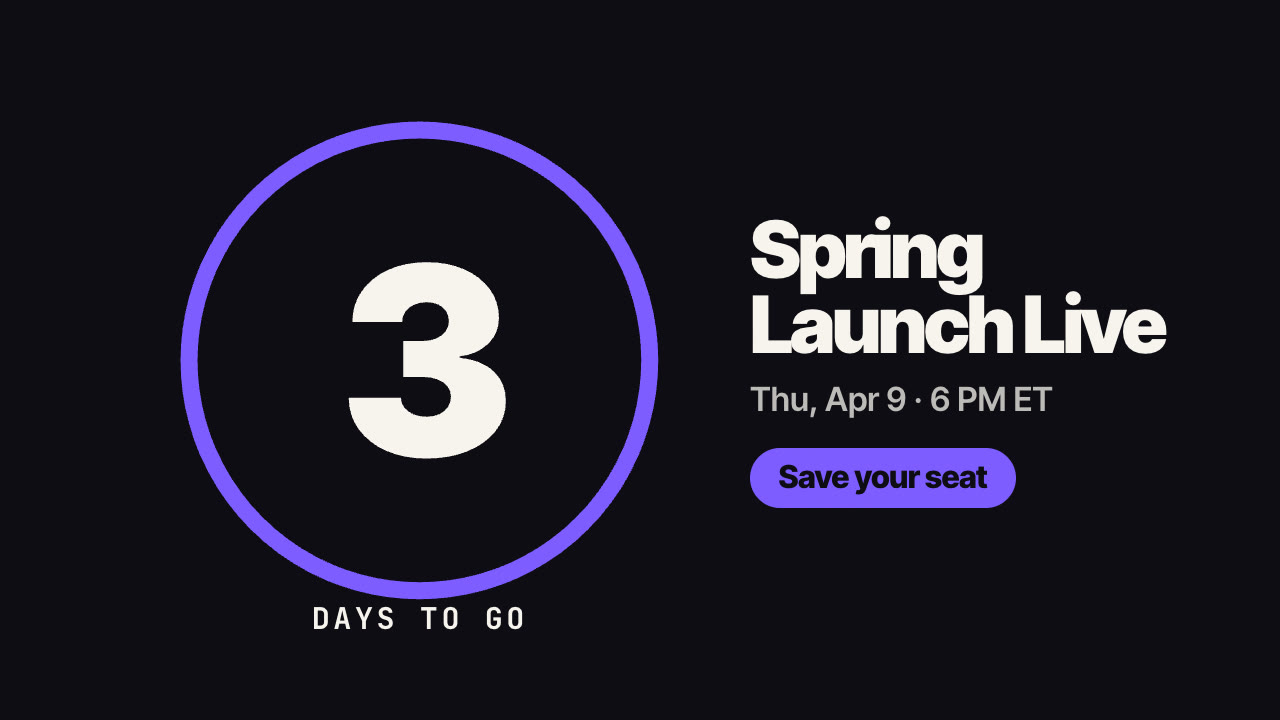
We'll make a 6-second countdown teaser for a product launch, but the steps are the same for any of the free video Skills.
SKILL.md work too — see supported agents.node -v.You don't need FFmpeg: each Skill installs its own copy with npm install.
Start Claude Code in a new folder for your video project:
mkdir launch-teaser && cd launch-teaser
claude --model claude-opus-5-5
Or run /model inside Claude Code and choose Opus 5.5.
Open the Countdown Teaser page, choose your agent and copy the install command. It looks like this:
npx --yes https://reelity.app/cli/reelity-cli.tgz install event-countdown-teaser --agent claude-codeThe first time, the CLI shows a short code and opens reelity.app/connect in your browser; approve it there to connect your account. The Skill is copied to ~/.claude/skills/event-countdown-teaser, where Claude Code finds it automatically. You can also just tell the agent "install the Reelity countdown Skill" and paste the command — it will run it for you.
Write the request the way you'd brief a designer. Include what it's for, the facts, and the formats:
Make countdown teasers for our Spring Launch on 9 April at 6 PM ET — one each for 3, 2 and 1 days to go. Brand colours #0E0E10 and #FF6A3D. Button: "Join the waitlist". I need 9:16 for Reels and 1:1 for LinkedIn.
Opus 5.5 recognises that the Countdown Teaser Skill fits, reads its SKILL.md and follows its workflow. If something is missing — the time zone, the call to action — it asks.
Before rendering anything, the agent shows you the on-screen text: the event name, the date line, the unit ("days to go") and the button. Fix wording here; it's the cheapest moment to change anything.
The agent writes an effect.json file and runs the Skill's checker:
node scripts/validate.mjs effect.jsonIt flags errors (a missing date, an image that doesn't exist) and warnings (lines too long to read on a phone, text that's low-contrast against your background). Then it renders a quick low-resolution draft and a poster image so you can check the timing and look.
After you approve the draft, the agent renders the finals — full HD MP4s at 30 fps:
node scripts/render.mjs effect.json --ratio 9:16 --out teaser-3days-9x16.mp4
node scripts/render.mjs effect.json --ratio 1:1  --out teaser-3days-1x1.mp4
For the series, it changes one value (count) and renders again. Three days of teasers in two formats is six files from one conversation.
Ask for other markets: "Now make the 9:16 versions in Japanese and German." The agent adapts the copy (not word-for-word), writes the date the way each market does, and renders again. CJK text renders with proper fonts and line breaks.
npx @puppeteer/browsers install chrome-headless-shell@stable and set CHROME_PATH to the path it prints.~/.claude/skills.