Free
guide
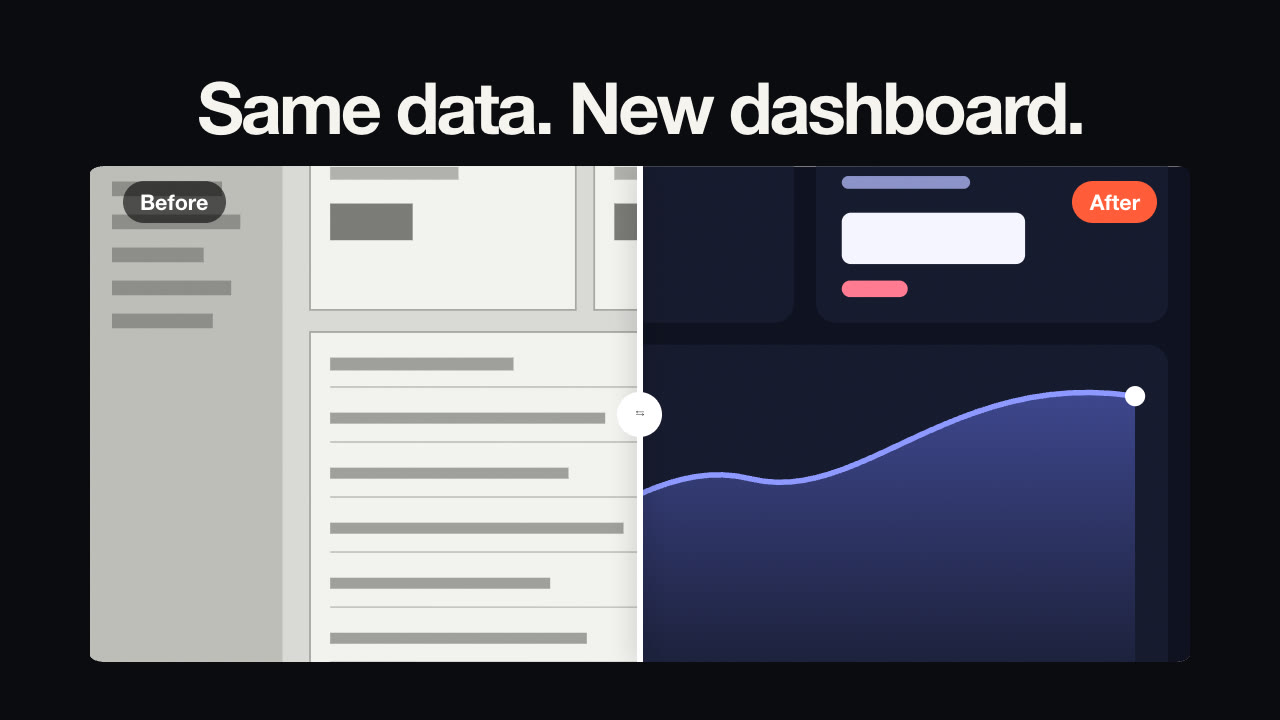
A divider sweeps across the before image to reveal the after. When the format works, how to shoot comparable images, the rules on before/after claims, and how to render it with AI.
Oct 27, 2026 · 2 min read
Few formats explain a product faster than before and after. A divider sweeps across the screen, the old state gives way to the new, and the viewer gets the point without a word of copy. It works for renovations, software redesigns, cleaning products, photo edits, skincare — anything with a visible change.
The whole thing takes about six seconds — enough to see both states clearly.
The comparison is only convincing if the two images match:
Before/after claims are some of the most scrutinised in advertising. Ad platforms restrict them in sensitive categories — Meta, for example, limits before-and-after imagery for weight loss and some health products — and consumer-protection rules treat an exaggerated result as a misleading claim. In practice:
Up to seven words that name the change: "Same room. One weekend." "Old report vs. new report." Labels default to "Before" and "After" and can be changed to anything up to two words ("Monday", "Friday").
The free Before / After Slider Skill renders this format locally:
Make a before/after slider from old-dashboard.png and new-dashboard.png with the headline "Same data. New dashboard."
Your agent confirms the copy, reminds you to use real, matching images, and renders MP4s in 9:16, 4:5, 1:1 and 16:9. For software, try it alongside a what's-new video.
Can I change the labels? Yes, up to two words each.
Should the images be the same size? Ideally yes — same aspect ratio and framing gives the cleanest sweep.