Free
guide
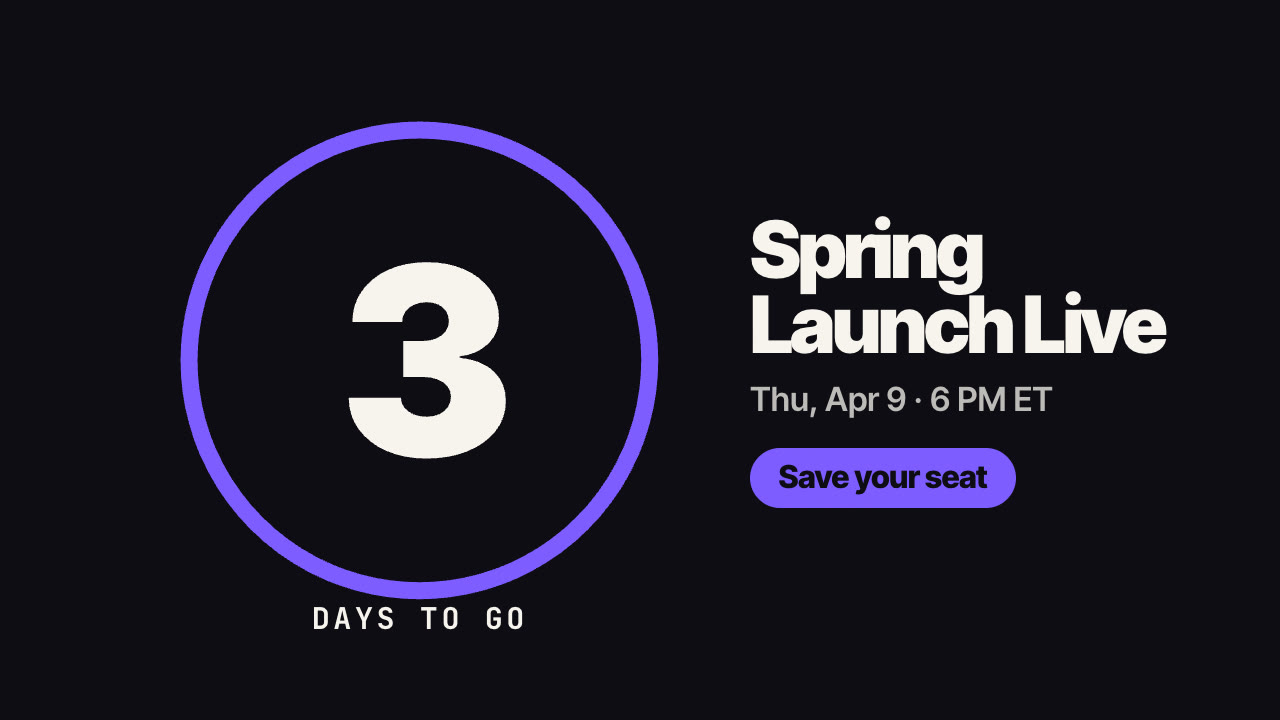
A big number counts down inside a filling ring, then the event, date and CTA. How to plan a countdown series, write the date right for every market, and render each day with AI.
Oct 27, 2026 · 2 min read
Countdowns build anticipation and give people a reason to come back. A countdown teaser shows a big number ticking down inside a ring that fills up, then the unit ("days to go"), the event name, the date and a call to action. Because only the number changes, one design gives you a whole series — seven days, three days, one day, "today".
A simple, effective schedule:
Render each by changing one number. Keep the copy identical across the series so it's recognisable.
Write the date the way each market does: "9 April" in the UK, "April 9" in the US, "9 avril" in France, "4月9日" in Japan and China. Give the event time in the viewer's time zone if you run separate ads per market.
The free Countdown Teaser Skill renders this locally:
Make countdown teasers for our webinar on 12 November at 5 PM GMT — one each for 7, 3 and 1 days to go — with the button "Save your seat".
The agent confirms the details once, then renders each day's video in the formats you need. For the full walkthrough, follow the Opus 5.5 video tutorial, which uses this exact example.
Can it count hours? Yes — set the unit to "hours to go".
Is it a live clock? No. It's a video for a specific day; render a new one for each day of the countdown.