Free
guide
A phone slides in and your screenshot scrolls inside it under a bold headline. How to prepare the screenshot, write the headline and render the video with AI — plus what App Store previews require.
Oct 27, 2026 · 2 min read
The phone mockup scroll is the workhorse of app marketing: a phone slides into frame, your app (or mobile site) scrolls smoothly from top to bottom inside it, and a headline tells people what they're looking at. It shows a lot of product in a few seconds, and you can make it from one tall screenshot — no screen recording, no editing.
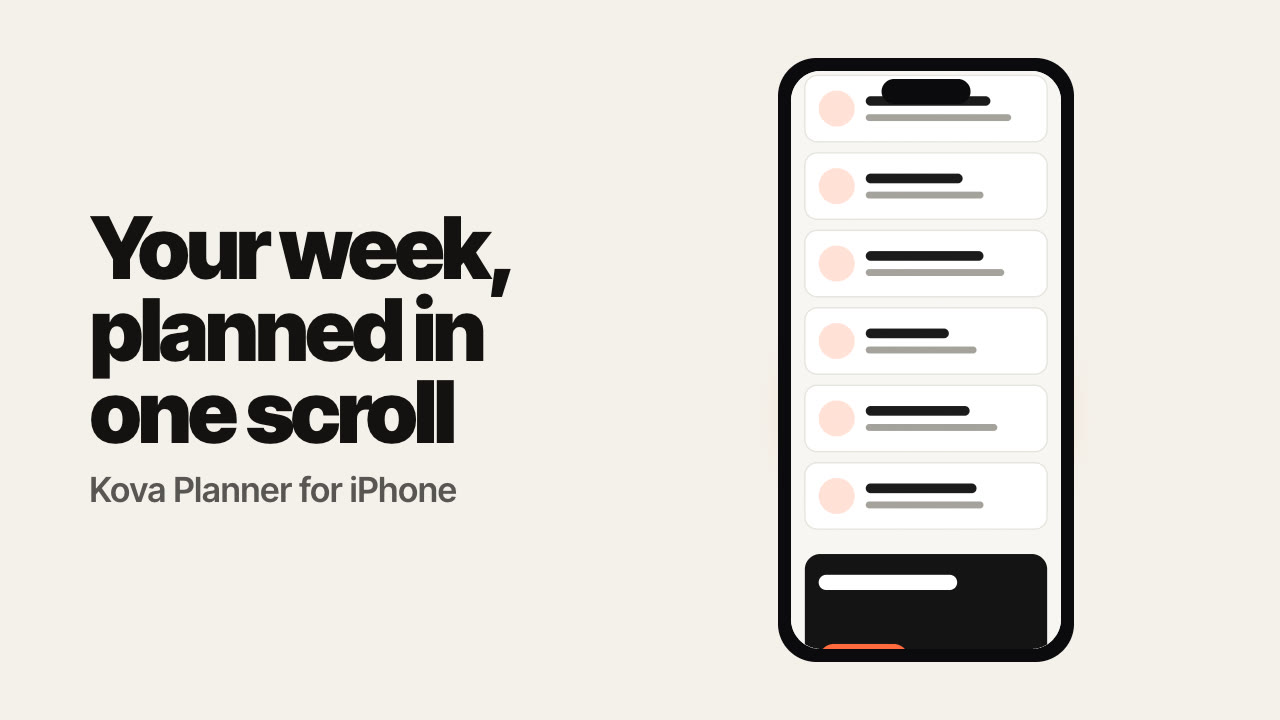
Up to seven words about the outcome, not the feature: "Your week, planned in one scroll" beats "Calendar app with tasks". Add an optional sub line, such as the app name and platform.
Apple's App Store app previews have their own rules — they should show footage captured from the app itself, at specific resolutions and lengths — so check Apple's app preview specifications before uploading anything there. Mockup videos like this one are best used on social media, in ads and on your website.
The free Phone Mockup Scroll Skill renders this locally:
Make a 9:16 phone-mockup video scrolling through full-screenshot.png with the headline "Your week, planned in one scroll".
Your agent confirms the copy, checks the image and renders the MP4 — 9:16 for Reels and TikTok, 16:9 for YouTube and the web. For desktop or dashboard products, use a 3D screenshot showcase instead.
Which phone is shown? A generic modern phone outline, so it never dates or implies a specific brand.
Can I use a website screenshot? Yes — any tall image scrolls.